Using one
Two ways, in the reply box:- Select the speech-bubble button on the formatting bar and pick from the list, or search it.
- Type
/at the start of a line, then start typing the name. Use the arrow keys to choose, Enter or Tab to put it in, Esc to close the list.
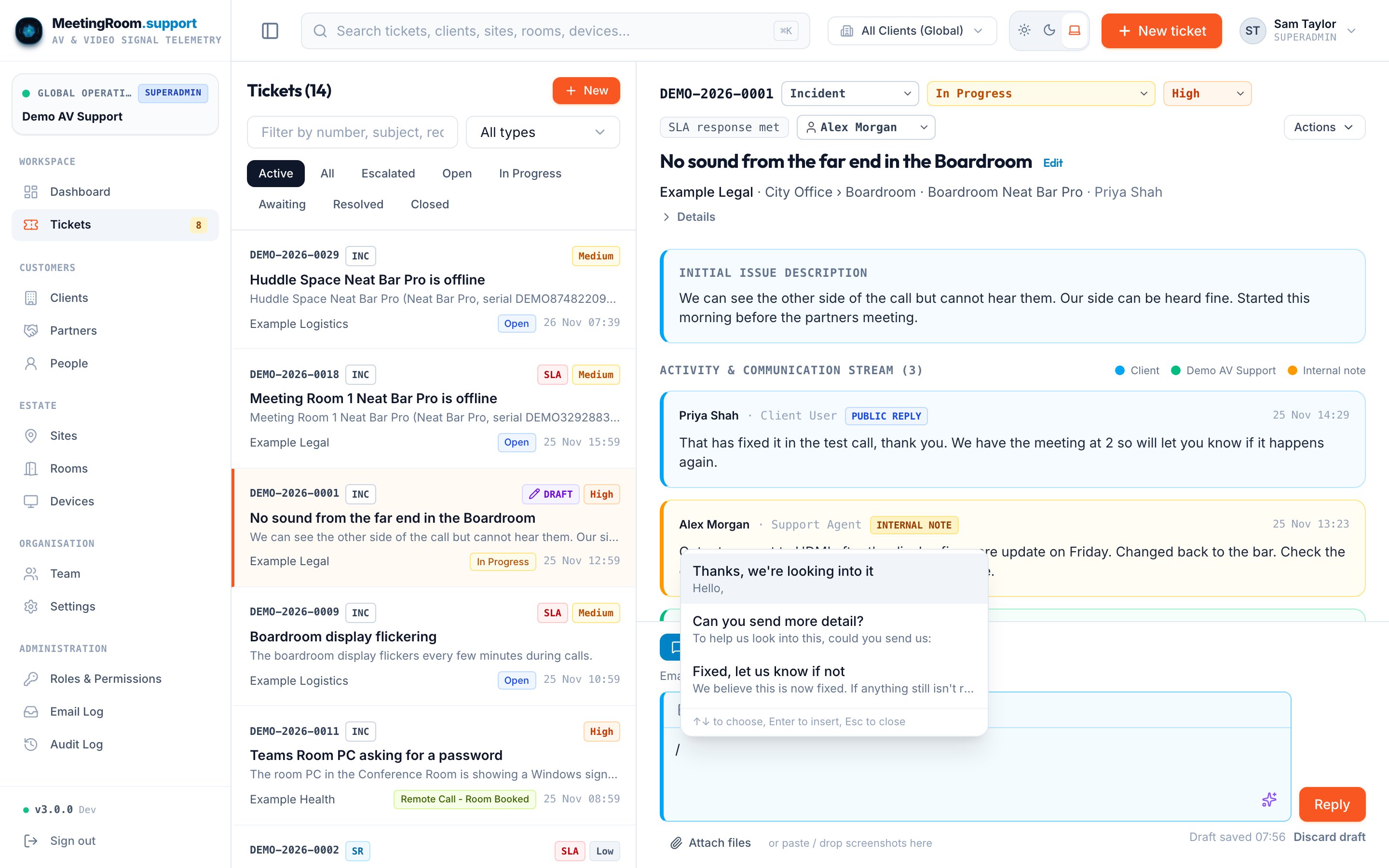
/name you typed), and you can edit it before sending. The list only offers responses that suit what you’re writing: some are for public replies only, some for internal notes only, some for both.
Managing the list
Open Settings and the Canned responses tab. You need Manage canned responses (Superadmins and Support Managers by default).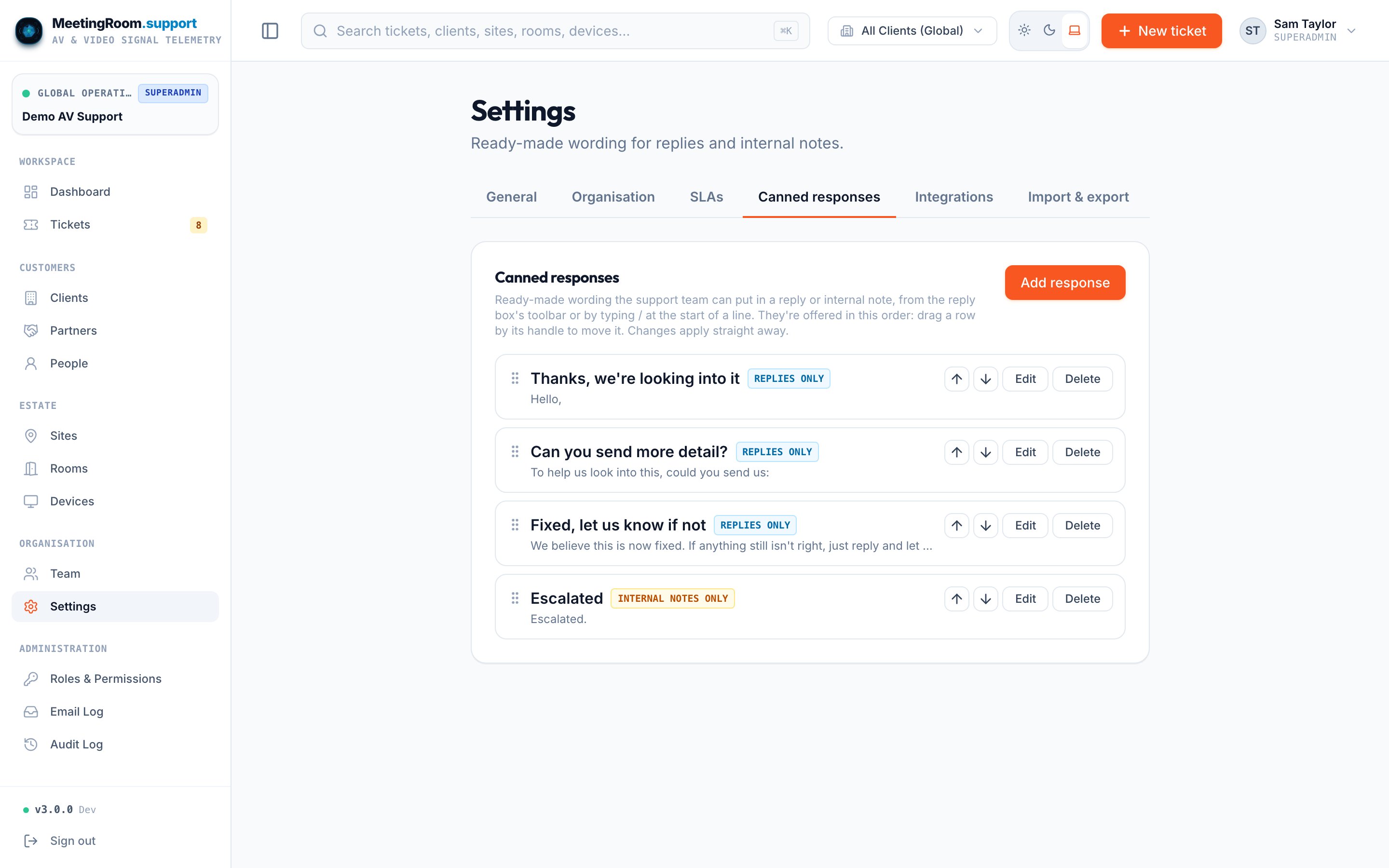
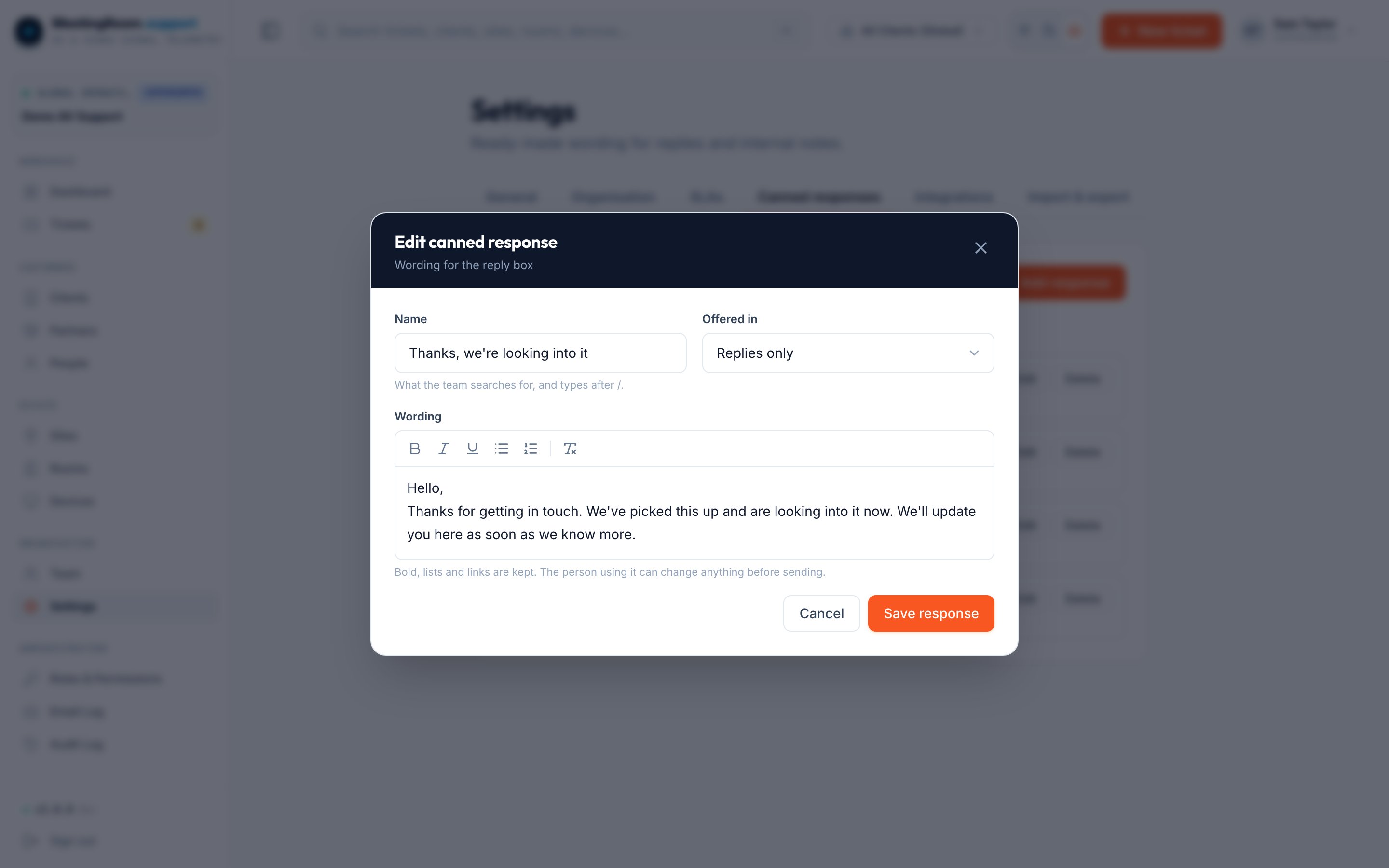
- Add response: give it a name (what you search by), choose where it’s offered (Replies only, Internal notes only or Both), and write the wording. Bold, lists and links are kept; images aren’t.
- Edit or Delete a response.
- Drag a row by its handle, or use the up and down buttons, to set the order the reply box lists them in.