

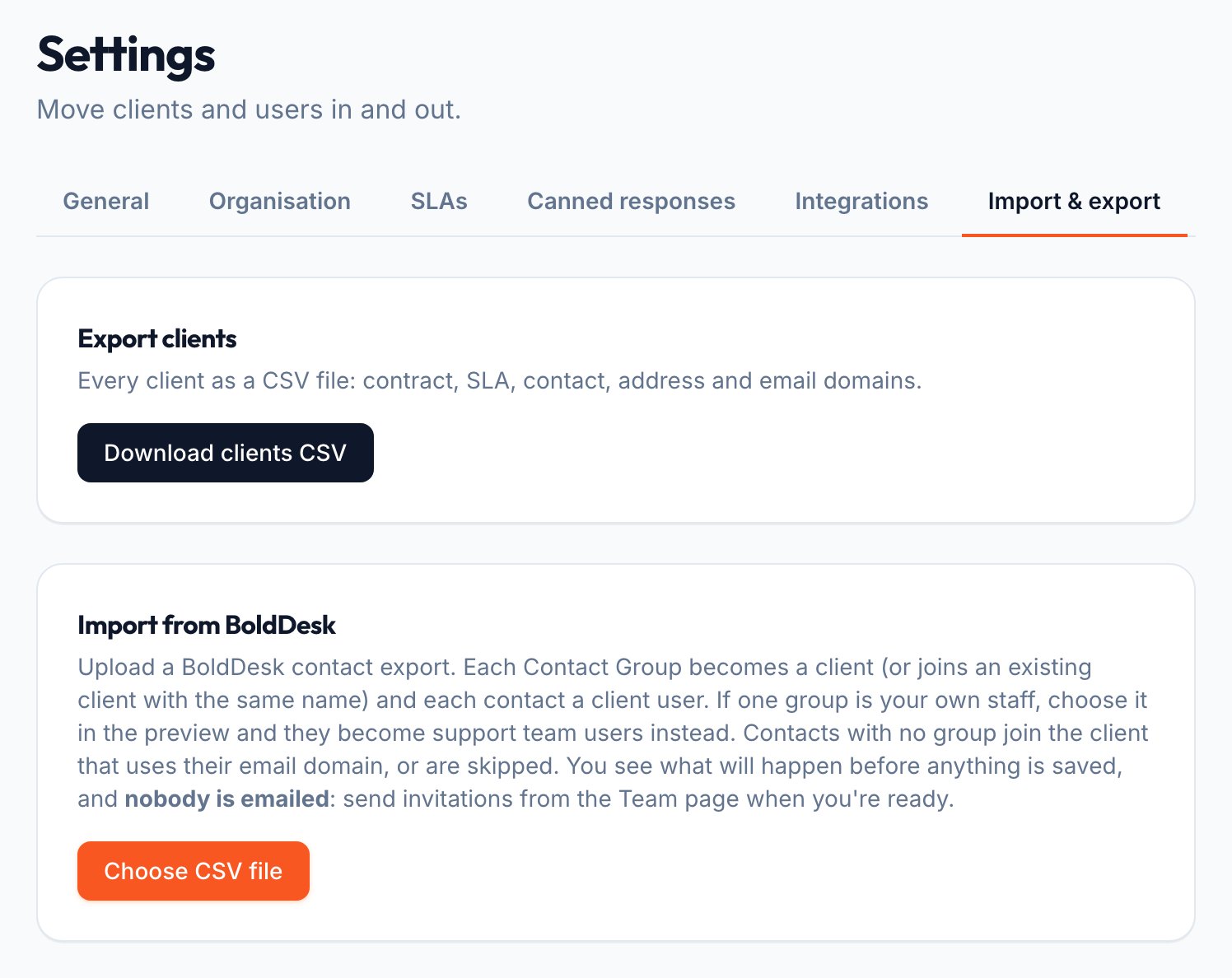
Export clients
Download clients CSV gives you every client as a spreadsheet: contract, SLA, contact, address and email domains.Import from BoldDesk
Upload a BoldDesk contact export with Choose CSV file.- Each Contact Group becomes a client, or joins an existing client with the same name.
- Each contact becomes a client user.
- Contacts with no group join the client that uses their email domain, or are skipped.
- Relay and system addresses (chat widgets, BoldDesk itself), duplicates and addresses already in use are skipped, with the reason shown.
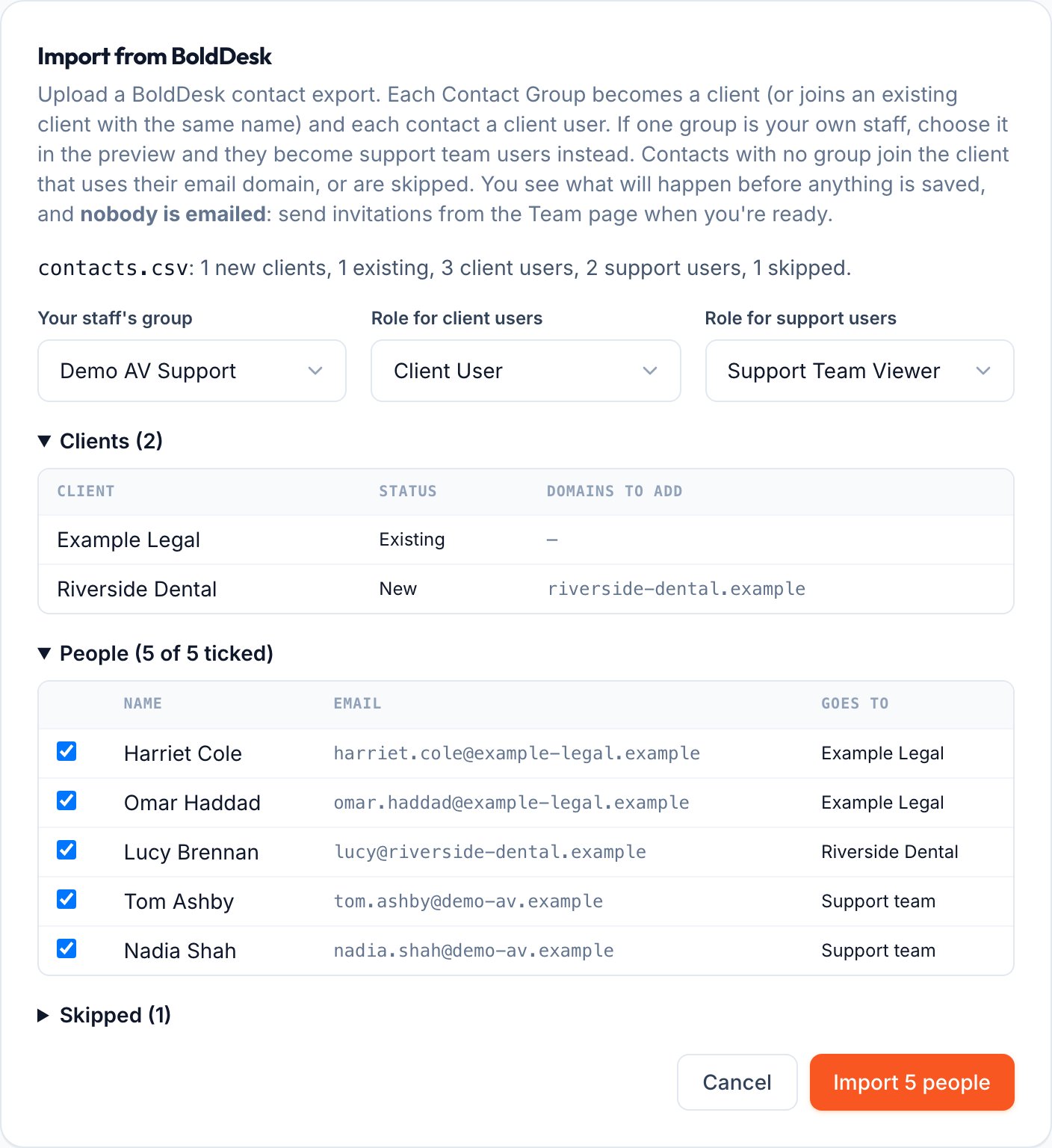
- Your staff’s group: if your own team is in BoldDesk as a Contact Group, choose it here and those people become support team users instead of a client. Leave it on None if every group is a client. You need Manage support team users to import staff; without it they’re skipped.
- Role for client users and Role for support users: what the imported people can do. Each starts on the role with the fewest permissions. Superadmin isn’t offered.
- Untick anyone you don’t want to bring in.