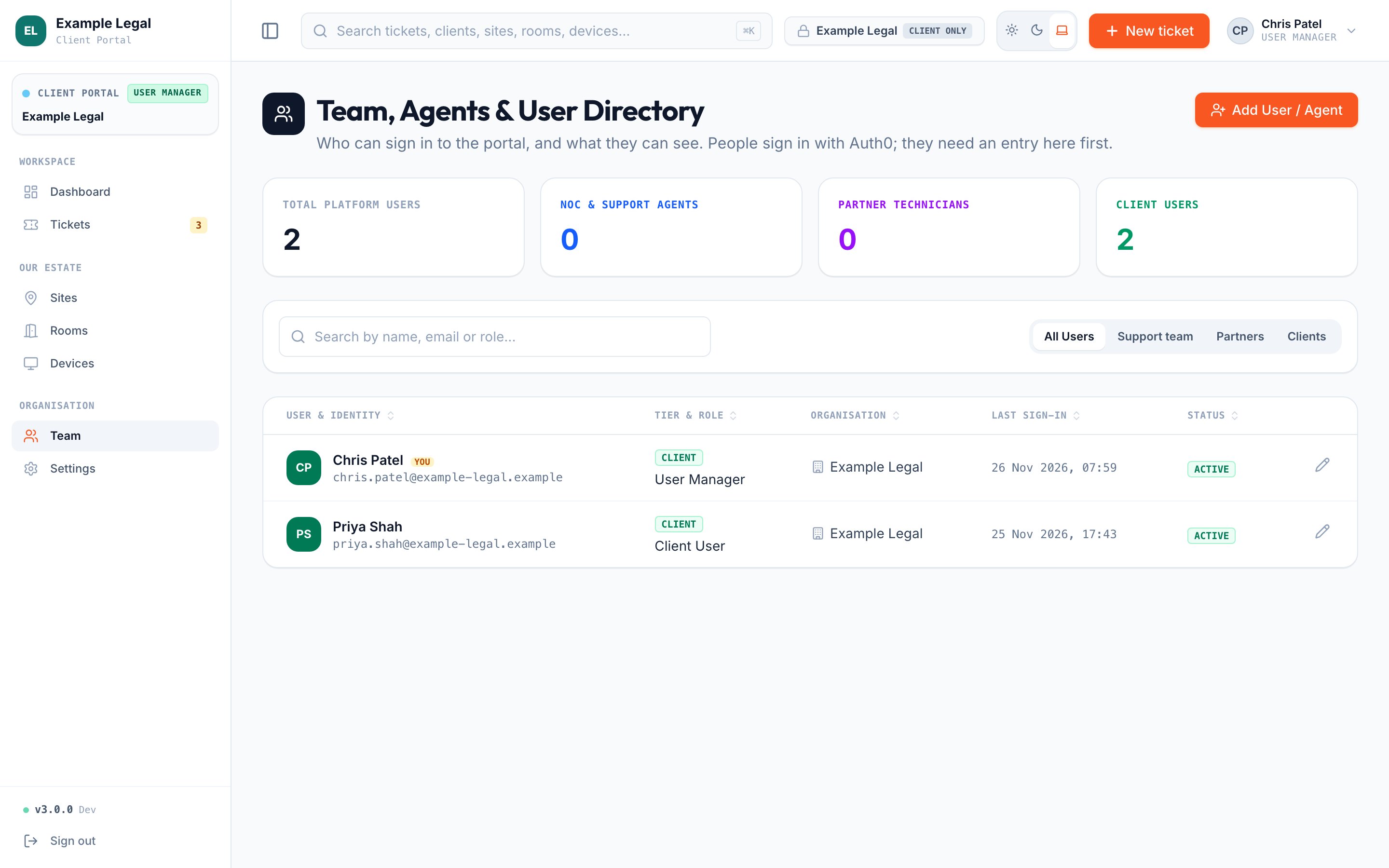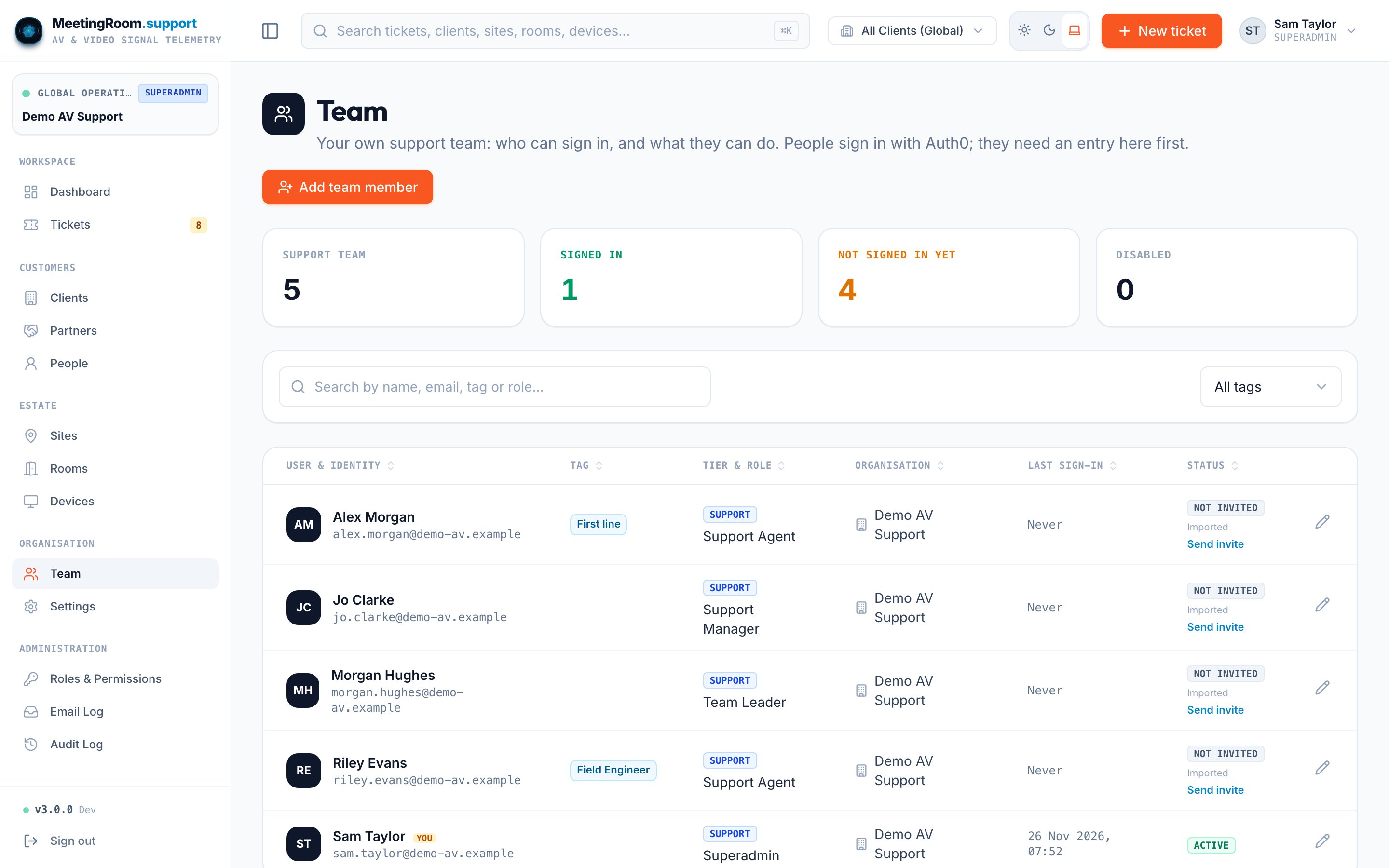
Open Team in the sidebar, under Organisation. For the support team, it lists your own staff only. Client and partner users are on the People page. The Team page listing the support team, with counts, a tag column and search Search by name, email, tag or role. Each row shows the person’s tag, role, when they last signed in, and their status.

Adding someone

Select Add team member. Adding a client or partner user works the same way, from Add client or partner user on the People page. The Add user form with email, name, role, client, phone and tag
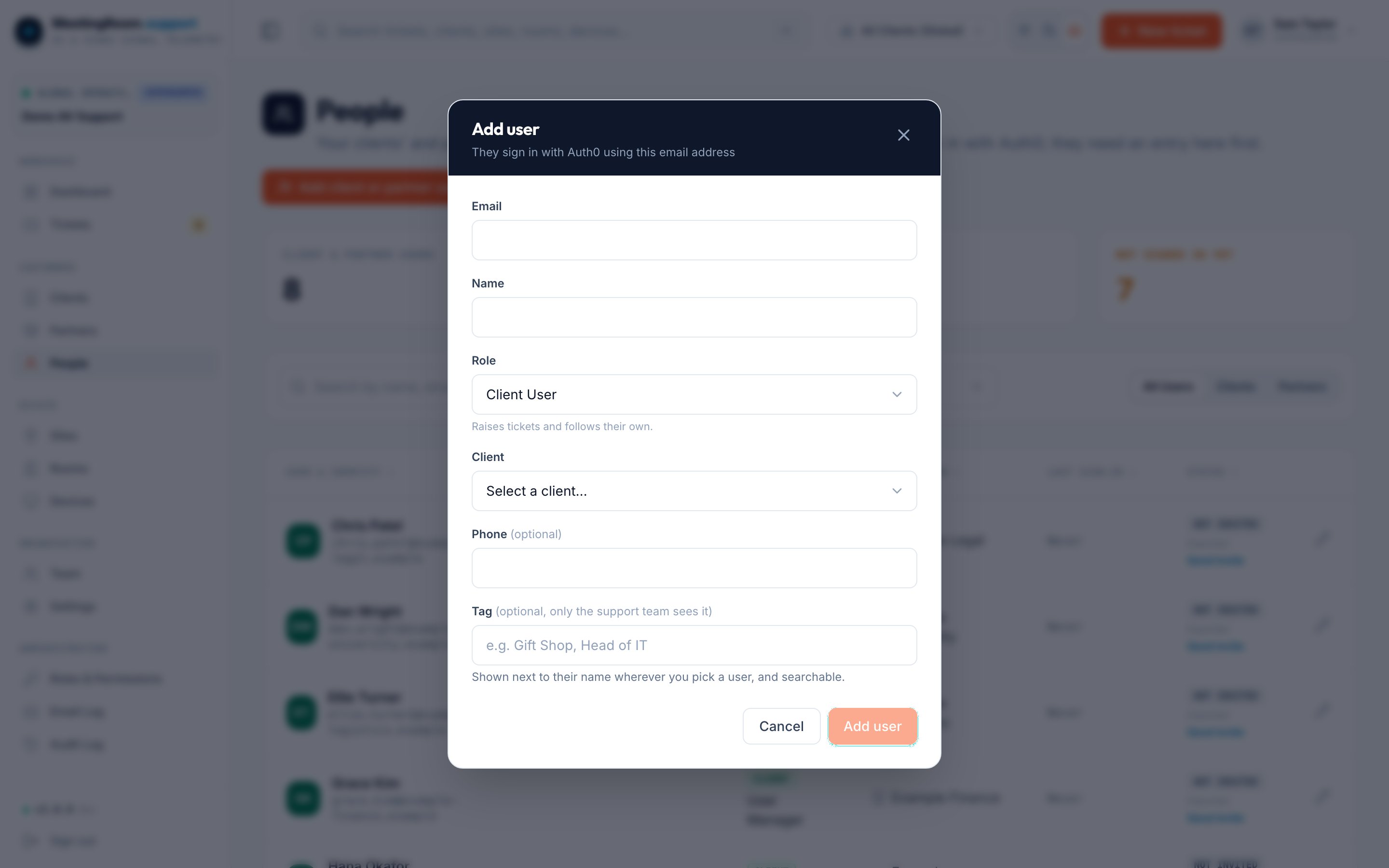
  1. Enter their email address and name. They’ll sign in with this address.
  2. Choose a role. The description under the list says what it allows. The role decides the tier: client roles ask for a Client, partner roles for a Partner.
  3. Add a phone number and a tag if they help, and select Add user.
The portal emails them an invitation. Until they first sign in they show Invited, with Resend invite. People who haven’t been invited yet show Not invited with a Send invite button, for example after an import. Your plan may limit how many support team members can be active at once (support seats). When every seat is in use, you can’t add or re-activate another support user until you block one. Partner and client users never take a seat. See Plans.

Who can manage whom

Nobody can give someone a role with permissions they don’t have themselves.

Blocking and removing

To stop someone signing in, edit them and untick Can sign in. Their name stays on the tickets and replies they wrote. Only a Superadmin can delete a user entirely.

Client User Managers

A client’s User Manager has a Team page too, listing their own company’s people only. They can add and block colleagues there without asking the support team. They don’t see tags. The Team page as a client User Manager sees it, showing only their company's users