

Neat Pulse
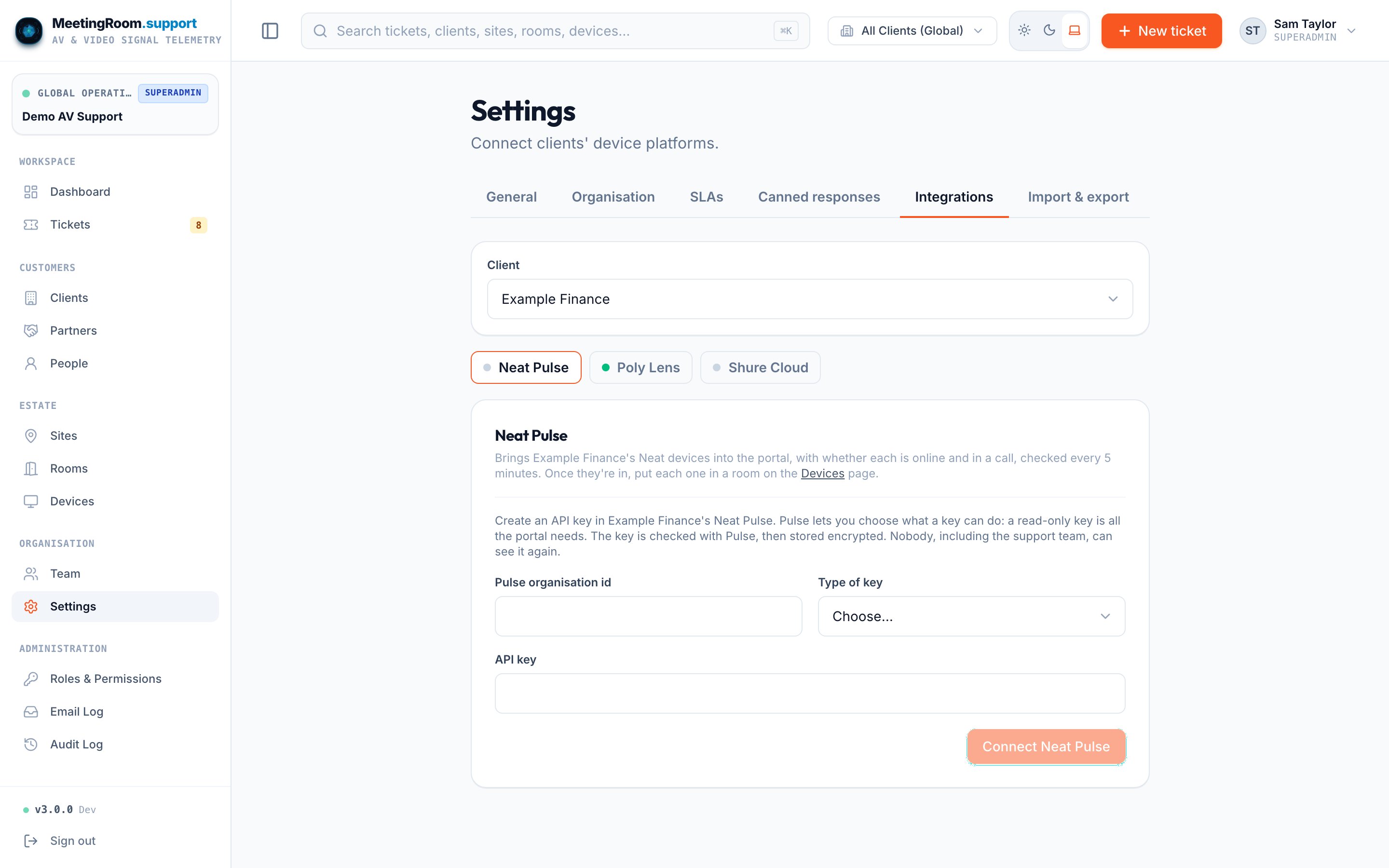
- In the client’s Neat Pulse, create an API key. A read-only key is all the portal needs.
- Enter the Pulse organisation id, choose the Type of key and paste the API key.
- Select Connect Neat Pulse.
Poly Lens
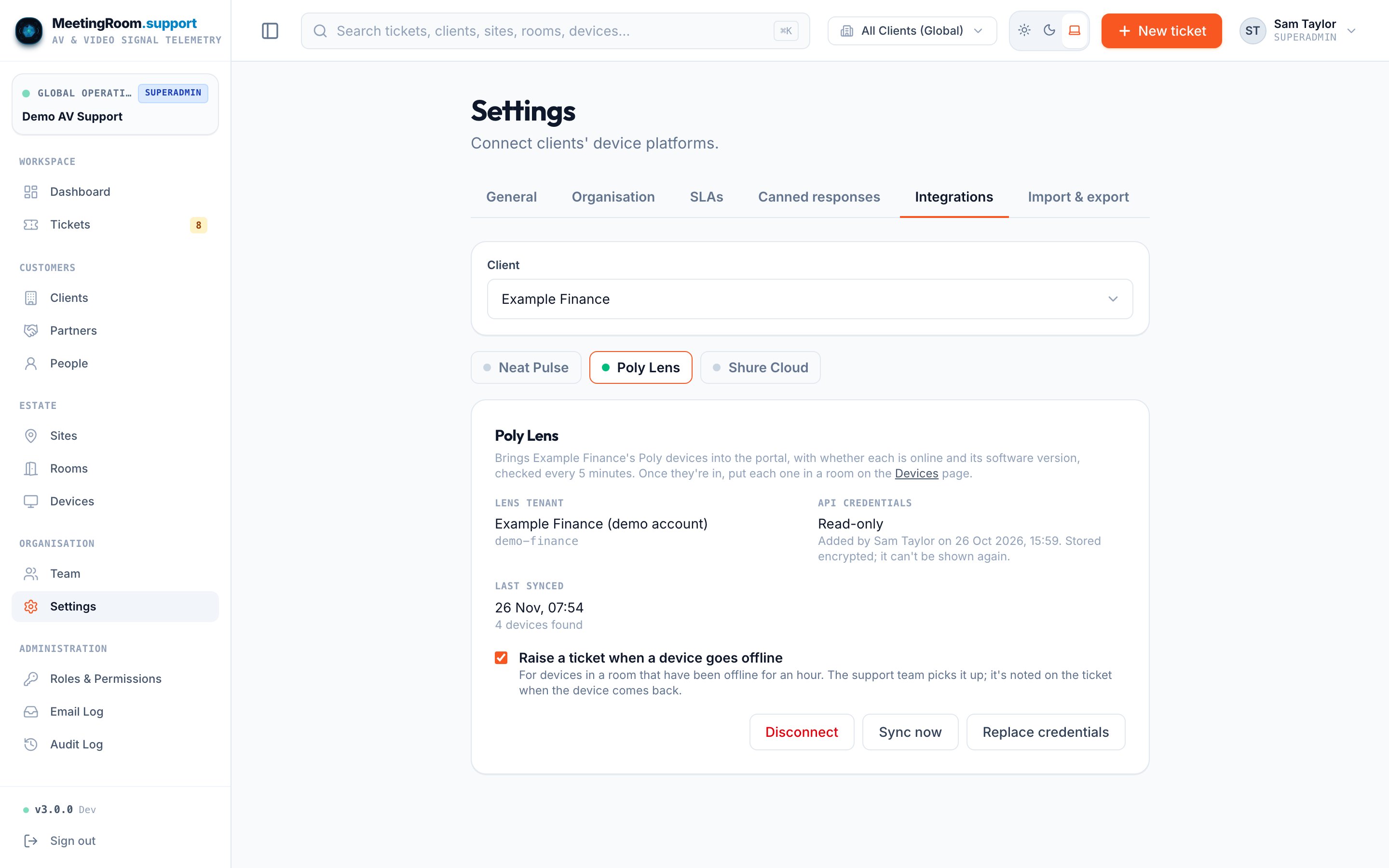
- In the client’s Poly Lens, under Account Settings > API Credentials, create credentials for this account only, with a view-only role.
- Enter the API client id and secret, and say whether the role is view only (recommended) or can make changes.
- Connect. The portal finds the client’s Lens account from the credentials. Credentials that can see several accounts, such as a reseller’s, get a list to choose this client’s account from.
Shure Cloud
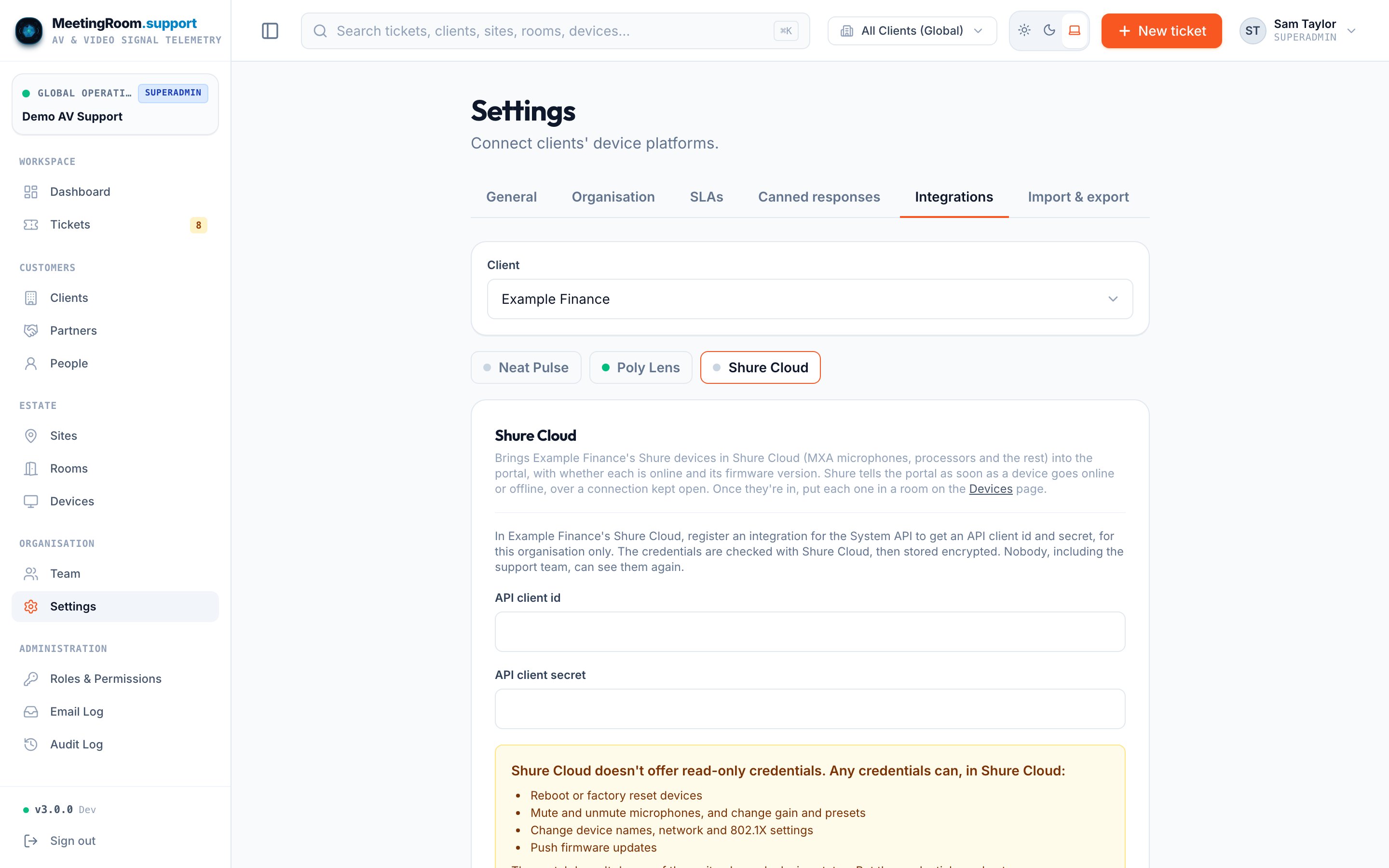
- In the client’s Shure Cloud, register an integration for the System API to get an API client id and secret, for this organisation only.
- Enter them, read the warning and tick to acknowledge it, and connect.
Once connected
- New devices appear on Devices under Unassociated Devices. Put each one in a room.
- Choose whether the portal raises a ticket when one of the client’s devices goes offline.
- Disconnect at any time. You can also remove the devices the platform brought in.